How to Enable E-Invoice in the GST Portal (Step by Step)
Written by Naresh, Founder of QWIK INVOICE · Last updated: 4 October 2026
If someone told you your GSTIN needs to be "e-invoice enabled" and you can't find the button on your GST dashboard, that's because it isn't there. Enablement lives on a separate site, the e-invoice portal run by NIC. And it's actually two steps, not one: first your GSTIN gets enabled, then you register a username and password to log in. Plenty of people only do one and get stuck. This guide walks through both, field by field, with the errors you're likely to hit.
Before you start: what to have ready
- Your GSTIN, typed correctly. A wrong one gives an "invalid GSTIN" style error, so confirm it with the Search Taxpayer tab on the GST portal.
- Access to the mobile number registered on your GST registration. That's where the OTP goes.
- The financial year in which your aggregate annual turnover (AATO) was highest, and that figure in ₹ crore. The enablement form asks for both.
- Somewhere safe to store the username and password you're about to create.
First: do you actually have to?
E-invoicing is mandatory for GST-registered businesses above the current turnover threshold, which is ₹5 crore of aggregate annual turnover at the time of writing, and it's been lowered several times before. Under it, you can skip this entirely or opt in voluntarily. Our e-invoicing rules guide covers the threshold and who's exempt (banks, insurers, SEZ units and others). If you're under the limit and your clients don't ask for IRNs, a normal GST invoice is all you need.
Step 1: Check if your GSTIN is already enabled
Don't fill any form yet. On the e-invoice portal, open the Search menu, choose the e-invoice status of a taxpayer option, enter your GSTIN and the captcha, and click Go. If it shows as enabled, skip to Step 3. This check matters more than it sounds: the enablement form can show a message saying the PAN belonging to your GSTIN is already enabled for e-invoicing, and people sometimes re-submit forms they didn't need.
Step 2: Fill the e-Invoice Enablement form
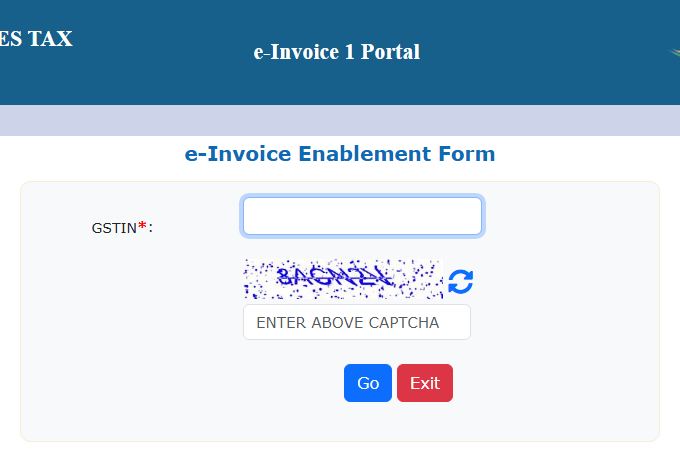
Go to einvoice1.gst.gov.in, click Registration in the menu, then e-Invoice Enablement. Here's what the form asks for, in order:
| Field / button | What to do |
|---|---|
| GSTIN + captcha, then Go | Enter your GSTIN exactly and solve the captcha. The rest of the form fills in from your GST registration. |
| Applicant name, trade name, address, city, PIN, state, mail ID, mobile | Read these through. They come from the GST common portal. If something is wrong, fix it on the GST portal rather than guessing at it here. |
| "I want to enable my GSTINs for e-Invoicing" checkbox | Tick it. This is the declaration that triggers the enablement. |
| Send OTP, then Enter OTP and Verify OTP | The OTP goes to the mobile number registered on the GST common portal. Enter it and verify. |
| Financial year with maximum AATO | Pick the year in which your aggregate turnover was highest. |
| AATO in ₹ crore | Enter that year's turnover, in crores. |
| Submit | Submit the form. Once it goes through, your GSTIN is enabled. |
If the OTP never arrives, the usual cause is a missing or outdated mobile number on the GST common portal. The portal's FAQ points people with a "no contact number" error to the GST helpdesk. Updating the number on the GST portal first is the faster fix.
Step 3: Register your username and password
Enablement alone doesn't give you a login. Go to the user registration page (it's under the same Registration menu) and enter your GSTIN and captcha again. You'll see the same pre-filled details, plus a few buttons worth knowing:
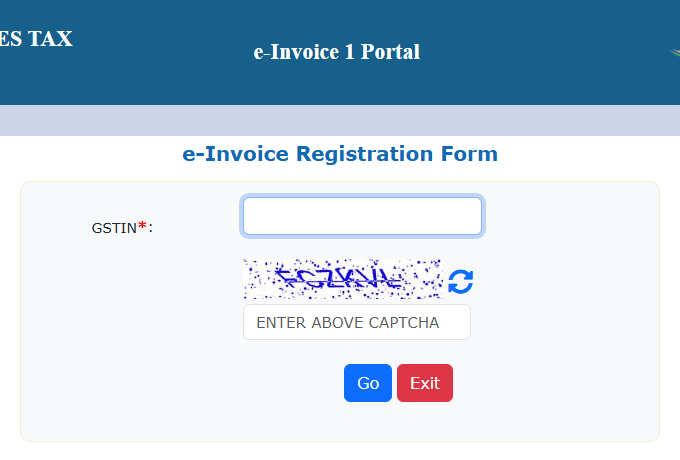
- Update from GST Common Portal: use it if the address or mobile shown looks old. It re-pulls your latest GST details.
- Send OTP / Verify OTP: same idea as before, sent to the registered mobile.
- Username, Password, Confirm Password: choose your own username. The password needs at least one uppercase letter, one lowercase letter, one number and one special character such as % $ # @ _ ! or *.
- Save: finishes registration.
Then log in with those credentials. If you already use the e-way bill portal, the portal's FAQ notes that those users can reuse their credentials, but check that it works for your case before assuming it.
Step 4: Decide how invoices will reach the portal
There are two routes, and the right one depends on volume:
| Manual / web upload | API (software or GSP) | |
|---|---|---|
| Good for | A few invoices a week | Dozens a day, or anything automated |
| What you need | Just your web login | An API user created on the portal |
| IP whitelisting | Not needed | Direct integration: up to four public IPs registered in India. Via a GSP: usually handled for you. |
| Credentials | Username + password | One API username per GSP or direct integration, or client ID/secret for GSPs and very large taxpayers |
Whichever route you pick, the invoice still has to be complete and correctly numbered before the IRP will accept it. See the invoice numbering guide and the format checklist for what gets rejected most.
Errors you may hit, and what they mean
| What you see | Likely cause and fix |
|---|---|
| Invalid GSTIN / details not available | The GSTIN was typed wrongly or isn't in the GST system. Confirm it using Search Taxpayer on the GST portal. |
| No contact number found | Your GST registration has no mobile number on file. Update it on the GST portal, or call the GST helpdesk. |
| Address or mobile shown is outdated | Click Update from GST Common Portal, or amend the details on the GST portal. |
| "Your account has been blocked, try after 5 minutes" | Five or more failed logins. It unlocks on its own. Use Forgot Username or Forgot Password rather than retrying. |
| Account frozen | The GST registration was cancelled or the GSTIN deactivated. This must be resolved on the GST side first. |
| Can't log in as an enrolled transporter | The portal says to change your status from enrolled transporter to GST registered taxpayer in your e-way bill settings first. |
| PAN already enabled message | Your PAN's GSTINs are already enabled. Run the status check on your specific GSTIN and go straight to registering a login. |
What enabling does and doesn't do
- It is not a new GST registration. It uses the GSTIN you already have.
- It does not create an invoice or an IRN. Those come when you report an invoice to an IRP.
- It does not back-fill earlier invoices. Only documents reported from now on get an IRN.
- It isn't a switch to flip back. If you're covered by the mandate, falling under the limit later doesn't automatically end it.
A note on what's changed on the portal
The portal's layout and wording shift now and then, and the voluntary opt-in is described differently by different sources. If a button isn't where this guide says, check the portal's own FAQ section (under Others on the e-invoice site) and trust what's on screen over any third-party article, including this one.
Frequently asked questions
How do I enable e-invoicing on the GST portal?
Enablement is done on the e-invoice portal (einvoice1.gst.gov.in), not inside your normal GST dashboard. Open Registration, choose e-Invoice Enablement, enter your GSTIN and captcha, tick the box saying you want to enable your GSTINs for e-invoicing, send and verify the OTP, give the financial year in which your turnover was highest and that turnover in ₹ crore, and submit. After that, you create a username and password on the separate user registration page.
Is e-invoice enablement a new GST registration?
No. You are not getting a new GSTIN. The form is pre-filled from your existing GST registration, and enabling only tells the e-invoice system that your GSTIN is covered. Logging in, generating IRNs and creating API users are separate steps afterwards.
Does enabling e-invoicing generate the invoice or the IRN?
No. Enablement only switches your GSTIN on. The IRN and signed QR code are created when an invoice is reported to an Invoice Registration Portal (IRP), either by uploading it yourself or through billing software or a GSP connected to the IRP.
How do I check whether my GSTIN is already enabled?
Use the taxpayer status search on the e-invoice portal: open Search, pick the e-invoice status of a taxpayer option, enter the GSTIN and captcha, and click Go. Check this before filling the enablement form. Many businesses are already enabled once they cross the limit, and the form itself can show a message that the PAN belonging to your GSTIN is already enabled.
Can I enable e-invoicing if my turnover is below the limit?
Voluntary opt-in is generally available. Sources describe an Enable Me for the e-Invoice option after you log in and submit a self-declaration. It is a choice, not a requirement, so do it only if you want to use the IRN workflow.
Do I have to register separately on the e-invoice portal for each GSTIN?
The portal's own FAQ says every GST-registered user who wants to generate IRNs must register on the e-invoice system separately using their GSTIN. The enablement form also talks about enabling your GSTINs, so run the status check for each GSTIN you hold and register each one that needs to issue e-invoices.
What are the password rules for the e-invoice portal?
The registration page says the password should contain at least one uppercase letter, one lowercase letter, one number and one special character such as % $ # @ _ ! or *. You also type it twice to confirm. Choose a username of your own on the same page.
I get an error that no contact number is available. What now?
The OTP goes to the mobile number registered on the GST common portal. If none is recorded, or it is outdated, the e-invoice portal can't send the OTP. Update the number on the GST portal first, or contact the GST helpdesk. If the displayed address or mobile looks wrong, the page has an Update from GST Common Portal button that pulls the latest data.
Why does it say my account is blocked?
After more than five failed login attempts the portal blocks the account and asks you to try again after about five minutes. It unlocks by itself. If you have forgotten the details, use the Forgot Username or Forgot Password option instead of guessing. A frozen account is a different problem: it happens when the GST registration is cancelled or the GSTIN is deactivated.
Do I need API credentials as well?
Only if software sends invoices to the IRP for you. Per the portal FAQ, a GSTIN can create one API username per GSP or direct integration, and direct access needs registered public IP addresses (a maximum of four). If you go through a GSP, you usually don't have to whitelist IPs yourself. If you upload invoices manually, your normal login is enough.
Will my old invoices get an IRN once I enable it?
No. Invoices, credit notes and debit notes are reported going forward. Earlier invoices are not back-filled.
Can I turn e-invoicing off later if my turnover drops?
Don't treat it as a switch. The obligation is generally tied to crossing the threshold in any financial year since 2017-18, so dropping back under it later does not normally end it. Check the current notification or ask your tax professional before you stop issuing IRNs, because an invoice without one can be treated as invalid for a business that is still covered.
Ready to put this into practice?
Create Your Invoice Free